
DIHOOM
Leap_ForwardLibraries & Demo
4.012.00 Reviews
- Version
- 4.11.5.9
- Installs
- 10.00K
- Age Rating
- Everyone
Screenshots

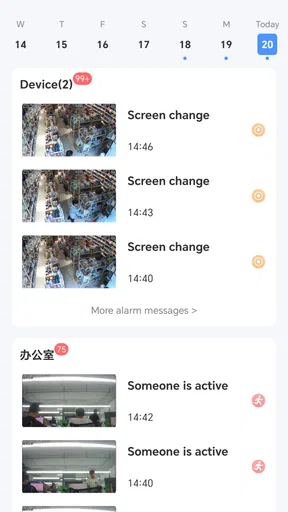
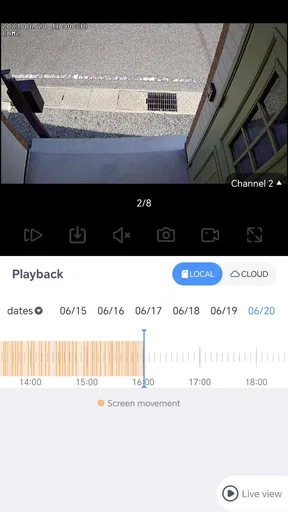
Our Review of DIHOOM
 Analysis by Appyee
I approached DIHOOM as a small, focused security-monitoring app rather than a full smart-home platform. Its store summary is brief, but that simplicity is useful: the app is meant for people who want a way to keep an eye on a security setup, not for anyone looking for entertainment or a large library of extra tools. After spending time with it, my main impression is that the experience depends heavily on getting the first setup steps right. When everything is prepared properly, the app can be a practical companion. When something is misconfigured, it may be easy to blame the app for a problem that actually comes from the phone, network, or monitored equipment.
The app comes from Leap_Forward and sits in the Libraries & Demo section, although its everyday purpose is clearly security monitoring. It is free to use and suitable for Everyone, which makes it approachable for a household, a small office, or someone testing a monitoring workflow before committing to a more elaborate system. Its current version is 4.11.5.9, and it runs on Android six or newer. That compatibility is helpful for older devices, though I would still use a reasonably current phone if monitoring reliability matters more than keeping an old handset in service.
Where the experience usually gets stuck
The first point of friction is not necessarily a broken screen or a dramatic error. It is often an unclear expectation about what DIHOOM can monitor on its own. A security-monitoring app is only one part of a chain. The phone needs to be functioning, the connection needs to be available, and the monitored source needs to be reachable. If one link fails, the app may appear inactive even though it is behaving normally.
I would begin by deciding what job I want the app to perform. Is the phone acting as a viewer, a receiver of security information, or a control point for an existing setup? That distinction matters because each role creates different points of failure. A person who opens the app expecting it to discover every device automatically may become frustrated quickly. A person who treats it as one screen in a larger monitoring arrangement will have a more realistic starting point.
Another common stumbling block is rushing through the first launch. Security tools are less forgiving of casual setup than ordinary apps because a missed connection, an incorrect destination, or an interrupted authorization can affect every later session. My practical advice is to slow down during the initial configuration, note what the app is asking for, and test one part at a time. Do not judge the monitoring workflow until the basic connection has been checked independently.
There is also a human factor. If several people use the same phone or if the device is shared with other household tasks, notifications, battery controls, and background restrictions can interfere with the expected experience. I would not install DIHOOM on a phone that is constantly being restarted, aggressively cleaned, or placed in a mode that limits background activity unless I had already confirmed that the monitoring task still works in that state.
What I would check before blaming the app
My first check would be the phone itself. I would confirm that the device is not in airplane mode, that its connection is active, and that other basic network-dependent activities work normally. This sounds obvious, but it separates an app problem from a broader connectivity problem in a few seconds.
Next, I would inspect the monitored equipment or source. If it has its own power, network connection, or status indicator, I would verify that it is available before opening DIHOOM. A monitoring screen cannot show useful information from a source that is offline. Restarting the app repeatedly will not repair a disconnected device.
I would also check whether the phone has enough free storage and whether the application is allowed to operate normally under the device’s battery-management rules. I am not suggesting that every Android phone handles these settings identically; the important point is to look for restrictions that could interrupt a security workflow. For a monitoring app, reliability is more important than squeezing out the last small amount of battery life.
The next check is version consistency. DIHOOM was released on June 20, 2023, and the current version is 4.11.5.9. If the app has been updated but the rest of the setup has not, or if the phone is running an older Android release close to the minimum requirement, I would consider compatibility before assuming that the application itself is defective. Android six is supported, but an older operating environment can still behave differently from a newer one.
A calmer setup routine saves time later
I recommend setting up the app while physically near the equipment or network involved. That makes it easier to tell whether a problem is local or remote. I would keep the phone unlocked during the first test, avoid switching between several networks, and confirm each stage before moving on. This is slower than tapping through everything quickly, but it creates a clear reference point for later troubleshooting.
After the first successful session, I would close and reopen the app once. That simple test answers an important question: did the setup work only while the original screen was open, or can the workflow be restored normally? I would then repeat the test from the location where I expect to use the app. A setup that works beside the equipment but fails from another room may be revealing a connection limitation rather than an application fault.
For households, I would choose one person to perform the initial configuration and write down the practical details needed for another user to repeat the process. This is one of the less obvious advantages of a disciplined setup: it prevents every family member from changing a different setting when the system appears quiet. For a small office, I would use the same approach and keep the monitoring phone dedicated to that purpose whenever possible.
I would not treat the free price as a reason to skip these checks. Free apps can still be useful, but security-related tools deserve the same care as paid ones. The fact that DIHOOM has an average rating of 3.9 from around 32 ratings suggests a mixed but not disastrous reception. I read that as a reason to keep expectations practical: some users may find it suitable, while others may encounter setup or compatibility friction that is especially noticeable in a monitoring context.
Recovering a workflow when monitoring stops
When the app no longer behaves as expected, I would use a fixed recovery order instead of changing several things at once. First, I would note what changed. Did the phone restart, move to another network, lose power, receive a system update, or sit unused for a long period? A timeline often points to the real cause faster than repeated reinstallations.
Second, I would test the connection outside the app. If the phone cannot reach the relevant network or equipment through the normal route, DIHOOM is not yet the right place to troubleshoot. Once the underlying connection is working, I would reopen the app and see whether the monitoring view recovers.
Third, I would fully close and relaunch the application. If that does not help, I would restart the phone. These are basic steps, but they are safe and reversible. I would avoid clearing stored app information immediately because doing so can remove local configuration and force a complete setup again. Before taking a destructive step, I would make sure I know how to recreate the connection.
A useful recovery habit is to change only one variable at a time. If I switch networks, reinstall the app, alter battery settings, and restart the monitored equipment together, I may restore the workflow without learning why it failed. That makes the next interruption harder to diagnose. A controlled sequence is especially valuable when the app is being used by someone who is not comfortable with technical troubleshooting.
If the problem appears after the phone has been idle, I would inspect battery-saving behavior and background restrictions before reinstalling. If it appears only after moving between networks, I would focus on network reachability. If it affects only one phone, I would compare that device with another compatible device rather than assuming the entire monitoring setup is down.
There is a practical trade-off here. A dedicated monitoring phone may offer a more predictable workflow because it is not constantly being used for gaming, calls, travel, and battery-saving routines. On the other hand, a dedicated device adds cost and maintenance even though the app itself is free. For a simple home situation, using an existing phone may be perfectly reasonable. For a situation where missed information would have serious consequences, I would want a more carefully maintained arrangement than an ordinary personal handset.
Separating app trouble from equipment trouble
DIHOOM is not the only possible source of a failed monitoring session. The monitored device may be powered down, the network may be unstable, or a router may have changed its behavior. A helpful test is to check whether the same source can be reached through its normal alternative method, if one exists. If every route fails, the app is probably not the main issue.
Another useful clue is scope. If one screen or one function fails while the rest of the setup remains available, I would look for a local configuration issue. If the entire workflow disappears at once, I would first examine power and connectivity. This does not require advanced technical knowledge; it simply avoids treating every symptom as an application bug.
I would also pay attention to timing. A problem that occurs immediately after a network change has a different character from one that appears after a phone update or after long periods of inactivity. Keeping a short note of these events can turn vague frustration into a useful support report. It also makes it easier to decide whether reinstalling is justified.
Because the app is rated for Everyone, it is approachable for nontechnical users, but that does not remove the need for clear household procedures. I would show other users how to confirm that the phone is connected, how to reopen the app, and who should handle deeper changes. The best recovery process is one that can be followed calmly at the moment it is needed.
Where alternatives may be the better choice
DIHOOM makes the most sense when I already have a compatible monitoring arrangement and want a straightforward app associated with that workflow. It is less compelling if I am starting from zero and expect a complete package with hardware discovery, extensive automation, cloud history, multiple user roles, and detailed reporting. In that situation, a broader security platform may be easier because its hardware and software are designed together.
Compared with a general-purpose camera viewer, DIHOOM may be preferable when the security setup it supports is the priority. A generic viewer can be simpler for checking a single camera, but it may not match the way a dedicated monitoring environment presents information. Conversely, if I only want occasional visual checks and have no need for a security-focused workflow, a familiar camera app may feel less demanding.
Compared with a large smart-home platform, the appeal here is restraint. A bigger platform can connect lights, sensors, cameras, and routines in one place, but it also introduces more menus and more opportunities for configuration conflicts. DIHOOM may suit someone who wants to keep the monitoring task separate. The trade-off is that I should not expect the breadth of an all-in-one ecosystem simply because the app belongs to the security-monitoring category.
The app’s install base is over ten thousand, so it is not an unknown experiment with no users at all, but it is also not something I would choose solely because it is widely established. I would choose it because its particular workflow fits the equipment and habits I already have. That is the right test for this product.
My practical verdict after using it
I see DIHOOM as a focused, free monitoring tool that can be useful when the surrounding setup is already understood. Its strongest quality is not a long list of extras; it is the possibility of keeping security monitoring in a dedicated place without paying for the app. The Everyone age rating and Android six minimum also make it accessible to people using older devices.
My reservation is that the app should not be treated as a magic solution. The first launch deserves patience, and recovery depends on checking the phone, network, and monitored source in the right order. Users who expect automatic discovery, extensive controls, or a polished all-in-one security ecosystem may be happier with a larger alternative. Users who need a lightweight companion for an existing arrangement may find DIHOOM more appropriate.
In an everyday scenario, I could see using it on a spare household phone kept in a known location. I would prepare the connection near the monitored equipment, test the workflow after closing and reopening the app, confirm that the phone is not being restricted in the background, and show another family member the recovery steps. That small amount of preparation would matter more to me than repeatedly checking the rating or changing phones whenever the screen looked quiet.
Leap_Forward has kept the product’s identity narrow, and I think that is both its advantage and its boundary. It avoids asking the user to adopt a complete smart-home system, but it also means the app’s value depends on the setup around it. My recommendation is therefore conditional but positive: try it if you need a free security-monitoring app for a compatible arrangement and are willing to verify the basics carefully. Skip it if you want a fully managed security service, advanced automation, or a single app that replaces every other part of the system.
Overall, the 3.9 average from roughly 32 ratings feels consistent with my view: DIHOOM can do a useful job for the right user, but it rewards realistic expectations and methodical setup. I would keep it as a practical option for a simple monitoring workflow, while remembering that reliable security comes from the complete chain, not from the app alone.
Privacy and Permissions
See what permissions an app requests and how it handles your data.
- Device & app history
- retrieve running apps
- Location
- approximate location (network-based), precise location (GPS and network-based)
- Phone
- read phone status and identity
- Photos/Media/Files
- read the contents of your USB storage, modify or delete the contents of your USB storage
- Storage
- read the contents of your USB storage, modify or delete the contents of your USB storage
- Camera
- take pictures and videos
- Microphone
- record audio
- Wi-Fi connection information
- view Wi-Fi connections
- Device ID & call information
- read phone status and identity
- Other
- view network connections, pair with Bluetooth devices, access Bluetooth settings, change network connectivity, allow Wi-Fi Multicast reception, connect and disconnect from Wi-Fi, full network access, close other apps, control vibration, prevent device from sleeping, Google Play license check
Verdict
Strengths of DIHOOM
- Simple interface makes browsing and discovering content easy.
- Useful search tools help users find relevant items quickly.
- Regular updates can improve features and overall app performance.
- Works well for users who prefer accessing content from a mobile device.
- Convenient access reduces the need to use a desktop browser.
Limitations of DIHOOM
- Some features may require account registration or personal information.
- Performance can vary depending on device model and internet connection.
- The app may use noticeable storage space after updates and cached data.
- Notifications could become distracting if too many are enabled.
- Availability of certain content or features may differ by region.
Similar Picks in This Category
View All
PGT: GFX, Launcher & Optimizer
Trilokia Inc.4.5

AusweisApp Bund
Governikus Service GmbH3.7

Cardboard
Google LLC3.2

Gamers GLTool with Game Tuner
Trilokia Inc.4.5

Multi Web Chat - Read Secretly
World Scan & Cleaner3.8

App Cloner Premium & Add-ons
App Listo1.9
Frequently Asked Questions
What is DIHOOM and what can I use it for?
DIHOOM is an app designed to help users discover and interact with digital content and services through a mobile-friendly interface. Depending on the version and region, its available tools may include browsing, account management, communication, personalization, or access to specific platform features. Before downloading, check the official listing to confirm which functions are currently supported on your device and in your country.
Is DIHOOM free to download and use?
DIHOOM may be available as a free download, but some features or content could require purchases, subscriptions, or other in-app payments. The exact pricing can vary by platform, location, and promotional offer. I recommend reviewing the app-store description and payment screen carefully before confirming any transaction, especially if the application is intended for use by children or shared family devices.
What permissions does DIHOOM request?
The permissions required by DIHOOM depend on the features enabled on your device. An app of this type may request access to notifications, storage, camera, microphone, location, or account information when those functions are needed. Review each permission prompt instead of accepting everything automatically. You can usually change permissions later in Android or iOS settings, although disabling some may limit particular features.
Is DIHOOM safe and suitable for all users?
DIHOOM should be downloaded from a trusted source, such as Google Play or the Apple App Store, to reduce the risk of modified or unsafe copies. Safety also depends on how the app handles accounts, messages, personal information, and external links. Check its privacy policy, age rating, developer details, and recent user reviews. Parents should also examine communication and purchase options before allowing children to use it.
Which devices are compatible with DIHOOM, and does it require internet access?
Compatibility can vary according to the operating system version, device model, available storage, and the current release of DIHOOM. Most online features normally require a stable internet connection, while some screens may work only partially offline. Before installing, compare the minimum Android or iOS requirements shown in the official store listing and make sure your device has enough free space for the app and future updates.
